3.2 Take action from a dashboard
Features: Actions
The investigation is complete: GB mobile customers are hitting payment failures. The VP wants to act immediately -- cancel the affected orders immediately, so that the stock is released for new customers during the sale -- without waiting for a developer to write a script.
An Action lets you attach an interactive button to a panel that fires an HTTP request when clicked. You'll build a table of affected orders from MySQL and wire a one-click cancel button directly into it. When you click the button, it sends a POST to an API with the order number.
Task 1: Add a failed orders panel
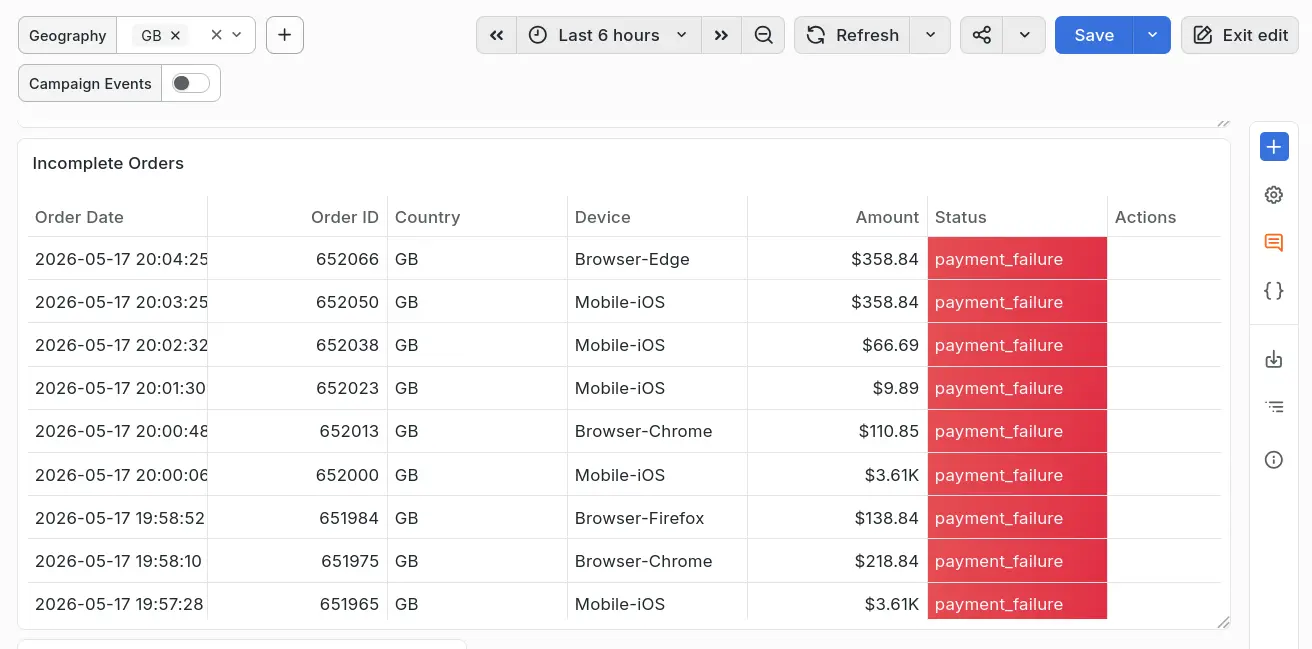
We'll add a new panel to the dashboard that shows a table of failed orders.
Add the panel
-
Add a new panel and name the panel
Incomplete Orders. -
Set its type to Table.
-
Set the datasource to Orders MySQL.
-
Switch to Code mode and paste this SQL:
SELECTo.order_date AS "Order Date",o.order_id AS "Order ID",c.country AS "Country",o.device AS "Device",FORMAT(o.total_amount, 2) AS "Amount",o.status AS "Status",NULL AS "Actions" -- we'll add a button here laterFROM orders oJOIN customers c ON o.customer_id = c.customer_idWHERE $__timeFilter(o.order_date)AND c.country IN (${geography:singlequote}) -- references the 'geography' variableAND o.status != 'completed'ORDER BY o.order_date DESCLIMIT 20
Notice how we're baking in the geography dashboard variable into the query, so that we show results that are relevant to the current dashboard context.
Make it look good
Add a couple of field overrides to make the table look nice. Use this Assistant prompt to help you:
In the Incomplete Orders table, format the Amount column as dollars, and change the Status column to pill view, with payment_failure in red, cancelled in blue, and completed in green
Curious how to do this without Grafana Assistant?
-
Add a field override for the Amount column:
- Choose Fields with name then select Amount.
- Add override property:
- Type: Standard options > Unit
- Value: Currency / Dollars ($)
-
Add a second field override for the Status column:
- Matcher:
byName→Status - Cell type:
Color text - Value mappings:
payment_failure→ red, display textPayment Failurecancelled→ blue, display textCancelledcompleted→ green, display textCompleted
- Matcher:
Task 2: Cancel failed orders with an Action button
Set up the Actions column
-
Edit the Incomplete Orders panel.
-
In the panel settings sidebar, under Data links and actions, under the Actions heading, click Add action.
-
Title: Cancel order
-
Confirmation message:
Do you really want to cancel order ${__data.fields['Order ID']}? -
Connection: Direct from browser
-
Method: POST
-
URL:
https://<ID>.aws.work-shop.grafana.net/api/cancel(replace<ID>with your workshop ID) -
Headers:
Content-Type: application/json -
Body:
{"order_id": "${__data.fields['Order ID']}","admin_password": "astronomix-admin"}Notice how we reference data fields from the panel using the
__data.fieldsstructure.
-
-
Scroll to the bottom and click the Add field override button.
- Use the Fields with name option
- Set the field name to
Actions - Click Add override property
- Set the property to Cell type and choose Actions (this renders the column as buttons).
-
Click Back to dashboard, then click the blue Save button.
Verify it works
Now let's verify the action works, by cancelling a couple of orders:
- Filter to
$geography = GB-- you should see payment failed orders - Click the Cancel Order button on a row
- Confirm the dialog, then the request should fire.
- Refresh the dashboard and you should see the order status change to
canceled. - Try performing this for another couple of orders and see what happens.
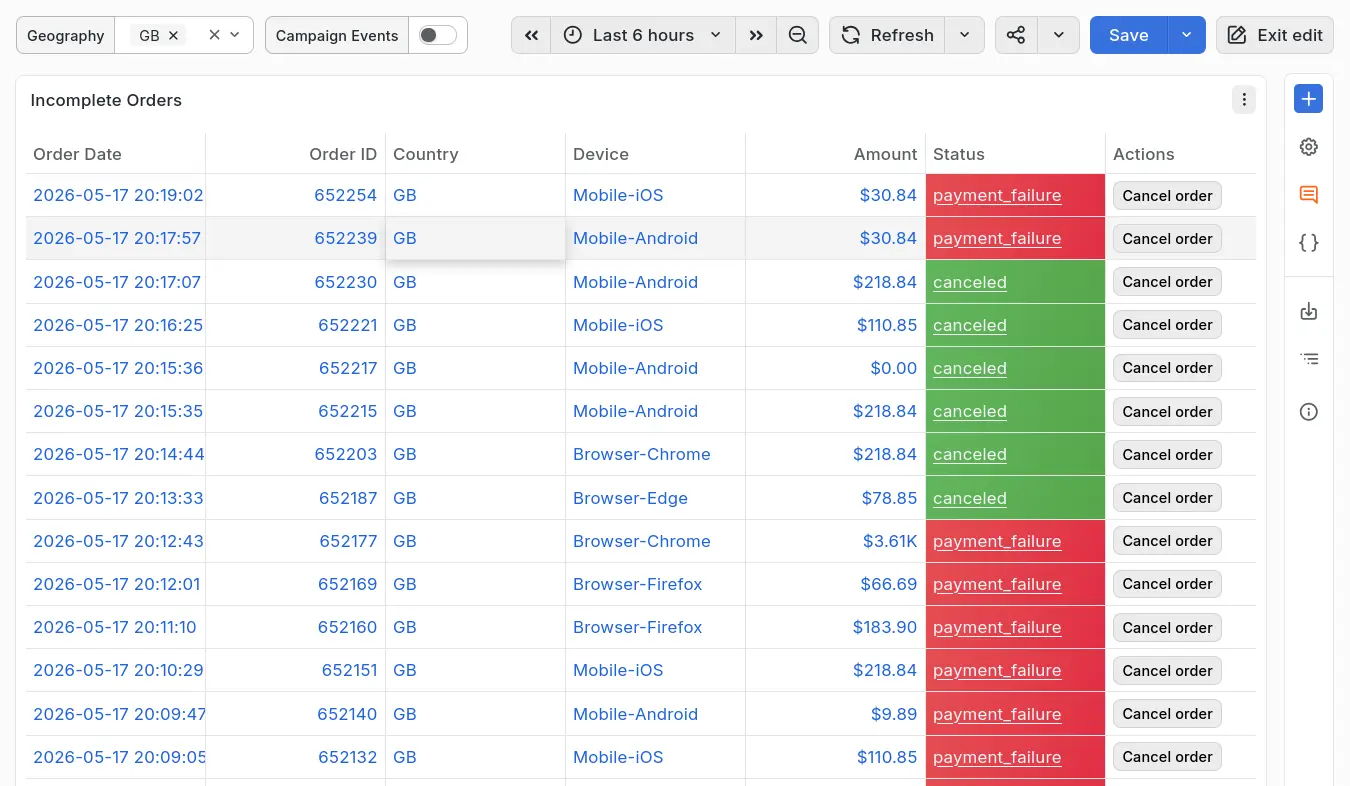
You just took a targeted, customer-facing action without opening a terminal, writing a script, or waiting for an engineer. Observe and operate -- from the same screen.
Wrapping up
In this section you've learned how to take action from a dashboard. This is an extremely powerful capability that turns a plain old dashboard into a power tool. Now any dashboard user can be an operator, too! You can take action without writing a script, and most importantly without switching context.
Actions can be added to any panel, and can be configured to fire HTTP requests with dynamic payloads based on the context of the click.
You could use Actions to:
- Send notifications to your team
- Trigger a script to run on a server
- Perform a rollback or restart of a service
- Send a message to a Slack channel
- Send an email to a list of recipients
Click Next to continue to the final section where we'll polish up the dashboard and make it more user-friendly.